
2 years
−62%+6 months free
190 ₽per month
5 700 ₽ in total
Buy for 5 700 ₽Bebra PROXY supports Windows 8 and 8.1 on both 32-bit and 64-bit PCs. Before you download, rule out one thing: Windows RT.
Windows 7 SP1 and newer · version 1.21.0
Updated
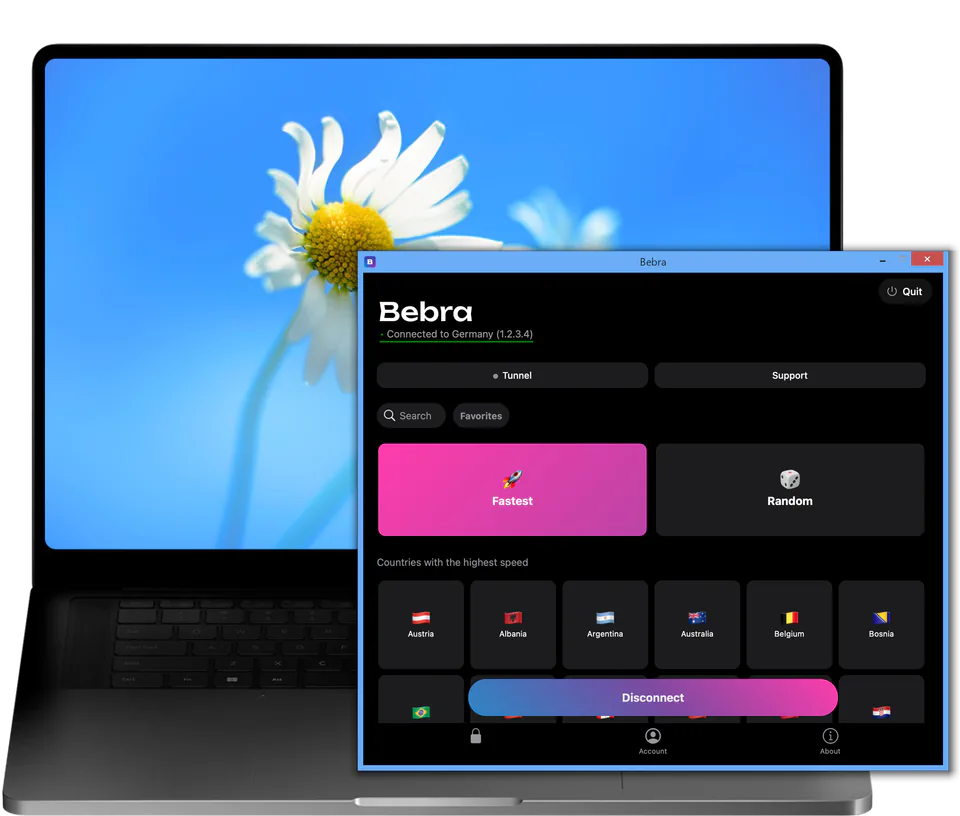
Get the installer from the button above, open it, then confirm the Windows prompt about changes with Yes.
For Windows 8 the installer fetches .NET Framework 4.6.1 from Microsoft, and for 8.1 it fetches version 4.8. If a suitable version is already there, this step is skipped. Otherwise keep the window open, since the installer itself puts this at 10 to 20 minutes.
When setup finishes, the Bebra PROXY window opens by itself. Pick any country tile. A new guest account has no subscription, so Buy Bebra VPN comes up first. Once you’ve subscribed or signed in to your own account, picking a country turns the PROXY on straight away.
Sometimes the installer ends by asking you to restart Windows so .NET Framework can finish. In that case the app won’t open on its own, and the installer will remind you to start it after the restart. You’ll find the shortcut on the desktop.
On first launch the app is already signed in as a guest. If you already have a subscription from the website or another device, go to Account → Sign out. On the sign-in screen, choose Sign in with Email with the address you paid with, or Sign in with code if Bebra PROXY is on your phone. The phone app gives you the code under Account → Sign in on another device.
Your subscription covers every device on the account, so an older laptop doesn’t need a plan of its own.
+6 months free
190 ₽per month
5 700 ₽ in total
Buy for 5 700 ₽350 ₽per month
4 200 ₽ in total
Buy for 4 200 ₽500 ₽per month
Billed every month
Buy for 500 ₽3 days of full access, then 500 ₽ per month. The subscription renews automatically.
No. Bebra PROXY installs on plain Windows 8 as well.
Yes. Windows 8 takes .NET Framework 4.6.1, and 8.1 takes 4.6.1 or later, all from Microsoft’s website. When the Bebra PROXY installer finds a suitable version, it skips that step and setup goes quicker.
Look at System type in the System window, which you can reach through Control Panel → System and Security. If it mentions an ARM processor, it’s Windows RT, and Bebra PROXY won’t install there.